To redact a PDF for free, use a tool that deletes the text under the black box, not one that only draws over it. Adobe's free Reader cannot redact. Free options that do it properly are Acta's online tool, Preview on a Mac and PDF24. Then run the copy test below to check that nothing can be recovered.
This article is general information, not legal advice. Facts about other tools come from their own pages, checked on 19 November 2026.
Why is a black box not a redaction?
When you draw a black rectangle over a name in a PDF, the name is still in the file, under the shape. Anyone can select the area, copy it and paste the text somewhere else. Search finds it too. Court filings and public records have leaked names and figures this way more than once.
A real redaction removes the text from the file. What is left is a black block with nothing behind it.
These look like redaction but are not:
- A black rectangle or shape drawn over the text.
- A black highlighter over the words.
- Black text on a black background in Word, then saved as a PDF.
- Cropping the page. The cropped part is hidden, but it can stay in the file.
Can you redact a PDF with the free Adobe Reader?
No. Reader lets you comment, highlight and draw, and none of that removes text. Adobe's help page lists the Redact tool under its paid Acrobat Pro plans. If you only redact a few files a year, you do not need to pay for it.
Four free ways to redact a PDF
1. Acta's free online tool
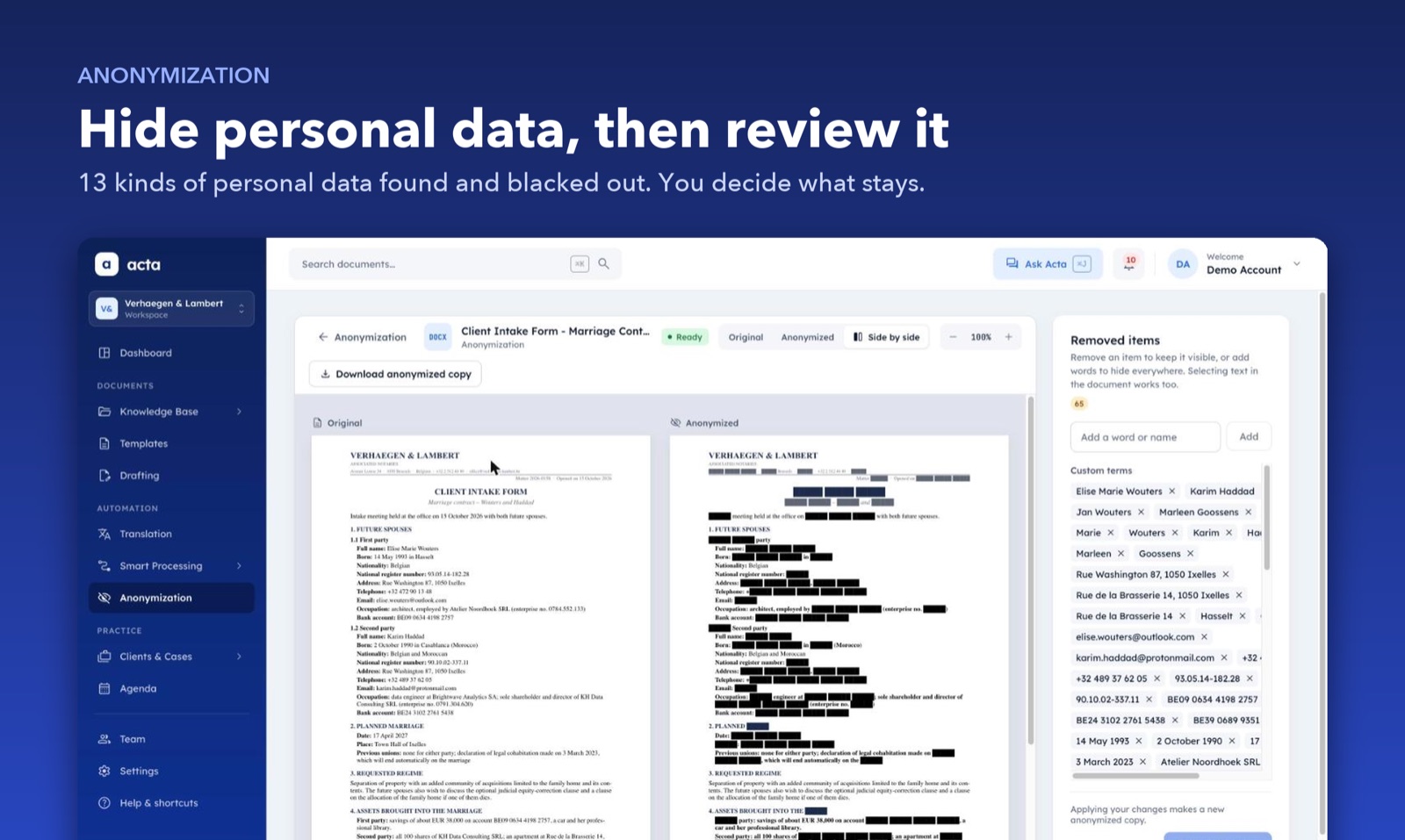
Acta's free tool is the only one of the four that finds the personal data for you. You upload a PDF or Word file, and it covers names, addresses, emails, phone numbers, ID and bank numbers, dates and signatures. You check the result, add any word or sentence it missed, and download.
In the PDF you get back, every page is a picture, so there is no text under the black blocks. Scanned pages work too, because Acta reads them with OCR.
The limits: three documents every 24 hours without an account, up to 10 MB, and up to 20 pages for a PDF. Because the pages become pictures, the text of the result can no longer be searched or copied. Files are kept for 30 days and then deleted.
2. Preview on a Mac
Preview has a redaction tool in its Markup toolbar. You select the text and it is blacked out. Apple's guide says the redaction becomes permanent once you close the document, so work on a duplicate. You mark each item by hand, and it works on text you can select, not on a scan.
3. PDF24
PDF24's Blacken PDF tool is free and runs in the browser. You draw black boxes over the areas to hide. Its page says the affected pages are turned into pictures when you save, so the content under the boxes is replaced. You find and mark every item yourself.
4. Print, cover and scan
The low-tech way still works. Print the page, cover the text with opaque tape or a thick marker, and scan it. Hold the page to the light first, because marker ink can let the print show through. It is slow and the quality drops, but it needs no software.
Which way fits your document?
| Way | Finds the data for you | Works on scans | Best for |
|---|
| Acta's free tool | Yes, then you review | Yes | Personal data in a contract, deed or letter |
| Preview on a Mac | No | No | A few words in a text PDF |
| PDF24 | No | Yes, you draw boxes | Any area, such as a picture or a table |
| Print and scan | No | Yes | One page, no tools allowed |
How do you redact a PDF with Acta, step by step?
- Open the free tool. You do not need an account.
- Upload one PDF or Word (.docx) file.
- Wait while Acta finds the personal data and covers it with black blocks.
- Read the result. Add any word or sentence it missed. Prices and reference numbers stay visible unless you add them.
- Download the redacted file. You can correct each result three times.
How do you check that a redaction can't be undone?
Run these checks on the final file, whatever tool you used.
- Copy test. Select all, copy, and paste into a plain text editor. If a hidden name shows up, it was only covered.
- Search test. Search the PDF for each name and number you removed.
- Move test. Click a black box and try to drag or delete it. If it moves, it is only a shape.
- File properties. Check the author and title fields. They often hold a name.
- Read it as a stranger. A job title, a small village and a date can point to one person, even with the name gone.
What are the common mistakes?
- Leaving the name somewhere else: in a header, a footer, a signature, a stamp or the file name.
- Missing a spelling. "Müller", "Mueller" and "MULLER" are three different words for a search.
- Sending the wrong file. Give the redacted copy a clear name, and keep the original in another folder.
- Forgetting comments. Notes and comments in a PDF can quote the text you hid.
What about Word documents?
A black highlight in Word hides nothing. The words are still in the file, and anyone can remove the highlight. Replace the words themselves, then remove comments and tracked changes before you save.
Acta's free tool takes Word files too. It replaces the hidden words in the file itself. Word files with tracked changes are refused, so accept or reject the changes first.
If you redact documents every week
The free tool is made for a document now and then. Acta itself is a web app for notary offices and law firms, and its Anonymization feature goes further. It finds 13 kinds of personal data and replaces each one with a label such as Person 1, so the text still reads well. Your office can list words that are always hidden. A review panel shows every item that was removed, and the original can be viewed but not downloaded. A person should always read the result, as no tool is perfect.
If AI is the reason you redact, read how to anonymize a legal document before using AI. Acta is free during the pilot. To see it on your own kind of file, request a demo.
Written by Ala Baganne, software engineer and founder of Acta.
About the authorSee what Acta can do for your office
Tell me which tasks take your office the most time, and I’ll tailor a free demo to them.
Request a demo